Ask the leaders you want to meet
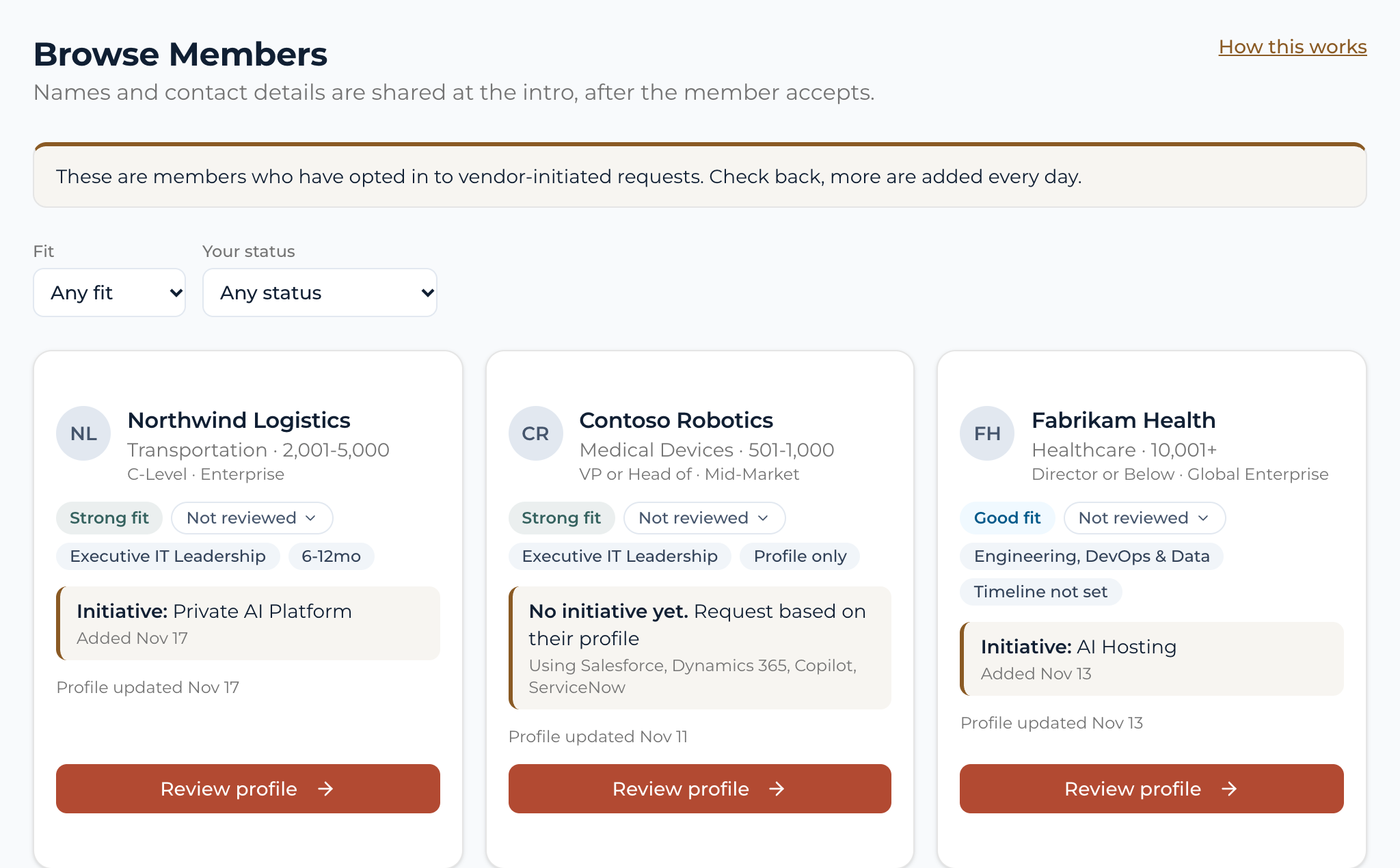
Browse Members shows you the IT and security leaders on DoGood, what they are working on, and lets you ask to meet them. When a member says yes, the meeting is already on your rep’s calendar.
From profile to booked meeting in four steps.
- 1. Find members
- Open Browse Members in your portal. Newest profiles come first, and a New tag marks anyone added since your last visit. Filter by fit (Strong, Good or Possible) or by your own status.
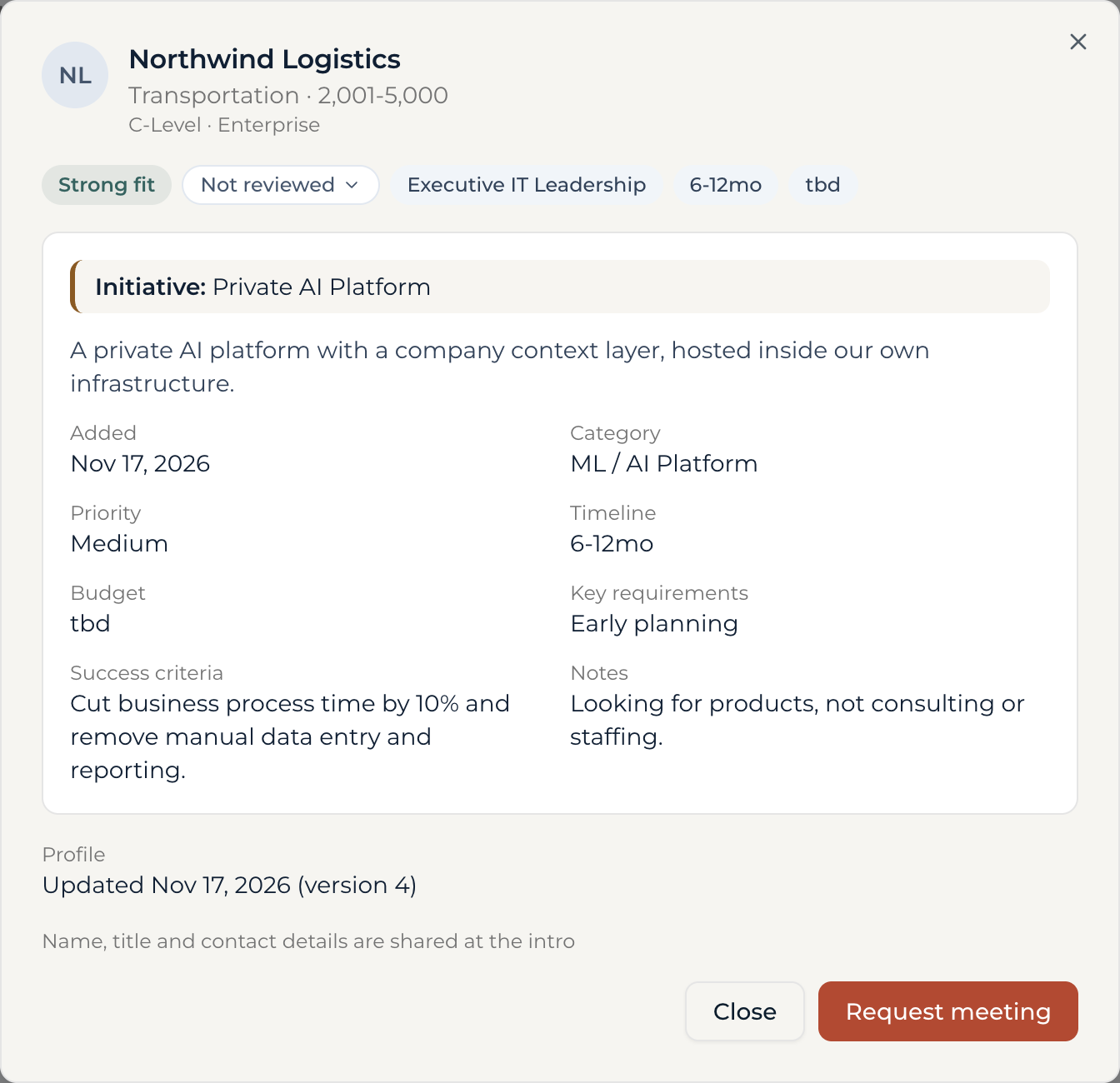
- 2. Read the profile
- Open a card to see the full profile: what they own, their current initiative, the tools they run and where they are in buying. Mark them Save for later or Not a fit so your team knows where things stand.
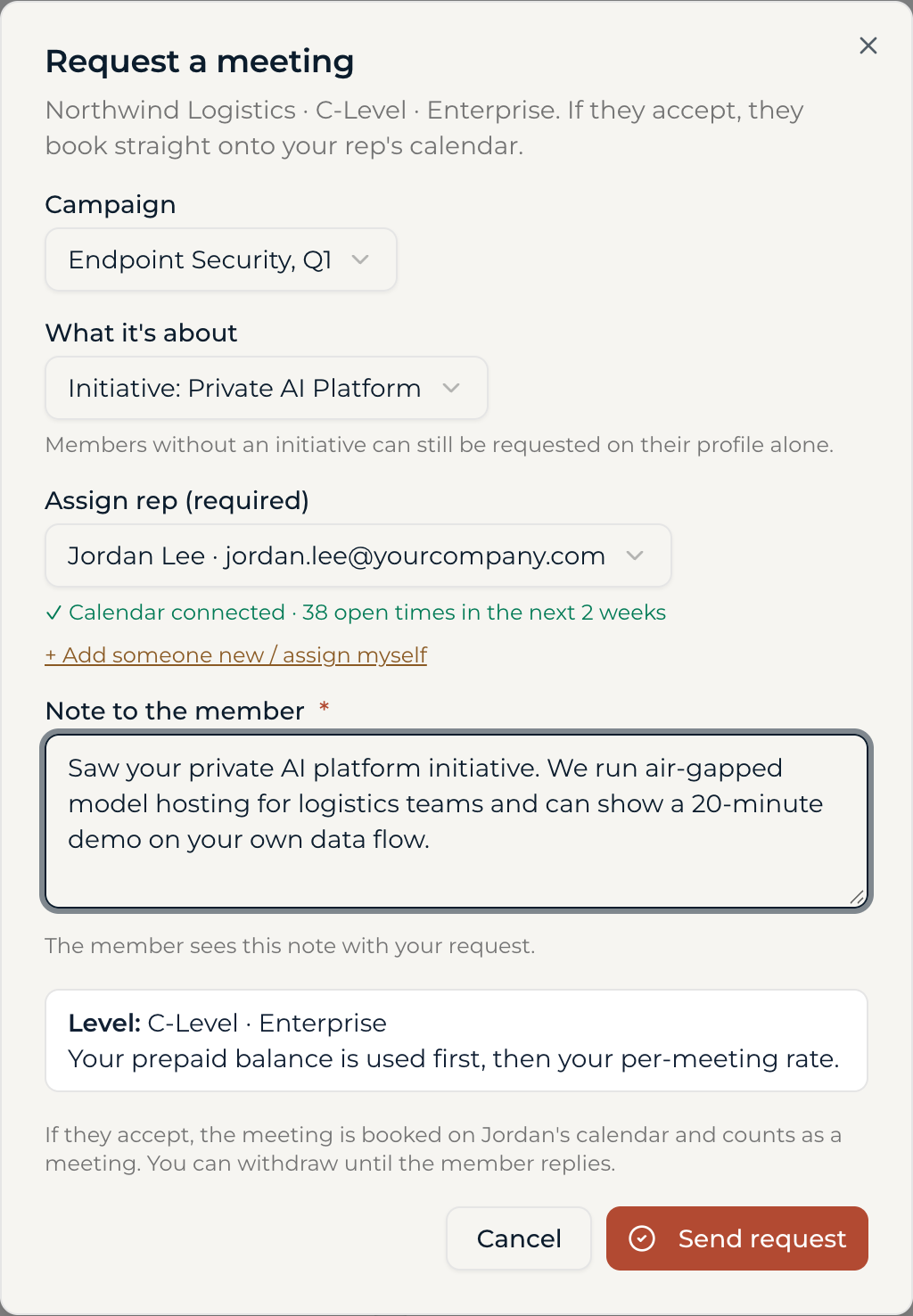
- 3. Send a request
- Pick the campaign it belongs to, name the rep who will take the meeting, and write a short note. The member reads your note with the request. Your rep needs a calendar we can read, because the member books straight onto it.
- 4. They book, or pass
- If the member accepts, they pick a time on your rep’s calendar in the same step and you both get the introduction with their name and contact details. If they pass, you see their reason when they give one.
Your request is your yes. Because the member books a time the moment they accept, there is no back-and-forth to schedule, and you should expect nearly every accepted request to turn into a meeting that happens.
What Strong, Good and Possible mean.
Every card carries a fit label for your team. It is our read on how likely you are to want the meeting, built from two things: how the member matches your campaign targeting (company size, role area and industry), and how your team has responded to similar members before.
- Strong fit
- Matches your targeting on every point, and members like them are ones you usually say yes to. Start here.
- Good fit
- Likely a fit. Either a close match on your targeting, or a small miss, like a company one size band off, on a type of member you usually take.
- Possible fit
- Outside your targeting on at least one point, or members like this have mostly been passed on. Worth a look when their initiative is exactly what you sell.
If you run more than one campaign with requests on, the card shows the best label across them. Labels update as you change your targeting and as you accept and pass on meetings.
Your rep needs a calendar link.
Every request names the rep who will take the meeting, and members book straight onto that rep’s calendar when they accept. So the rep needs a booking link we can read, with open times in the next two weeks.
The request form checks it for you. A green “Calendar connected” line means you are ready; if the rep has no link yet, add one in the form and recheck before you send.
The work, before the name.
- Before they book
- Company, level, role and area, the initiatives they have shared, and the profile we wrote from their own words.
- If they hide their company
- Industry and company size in place of the company name.
- Once they book
- Their name, title, contact details and company, so your rep walks in knowing who they are meeting.
Some members hide their company. Many work under compliance or confidentiality rules about being named while they look at tools, and some would rather a vendor judge the fit on their work first. A hidden company is not a weaker lead: the initiative, level and size are the same, and the company comes with the introduction when they book.
Four things to know before your first request.
The portal asks you to agree to these once, before your first request.
- An accepted request is a booked meeting
- It is billed at the member’s level, from your prepaid balance first and then your per-meeting rate.
- Cancelling after they book
- If you cancel a meeting a member booked from your request, it still counts as a used meeting.
- Withdrawing
- You can withdraw any time before the member replies. Requests do not expire on their own.
- Keep it on DoGood
- Do not contact a member outside DoGood about a request, even if you already know them. Wait for them to book. After the meeting, follow up however you normally would.
Questions
I don’t see Browse Members in my portal.
It is turned on per campaign. Ask your DoGood contact, or email meetings@mydogood.com, and we will switch it on.
Why can’t I see a member I have met before?
A member you already have an open or completed meeting with does not appear in Browse. Keep working that relationship directly.
A member passed. Can I ask again?
Not for 90 days. If they change roles or companies before then, they become available again.
What makes a request land?
A note that shows you read their profile: name the initiative or the problem they described, say what you would show them, and keep it to a few sentences.
How current are the profiles?
We update each profile as the member adds initiatives, updates an answer or tells us something new, and members can edit theirs any time. Each card shows when it was last updated.
Browse Members is just another way DoGood makes meetings both sides want.